 By Santosh Kumar
 FCI HRMS stands for Food Corporation of India Human Resource Management System. It is an online employee-management platform used to maintain and process different HR-related activities of FCI employees.
The system provides Employee Self Service, commonly called ESS, through which employees can initiate, track and monitor various service requests. Employees with managerial or approval responsibilities may also receive access to Manager Self Service according to their assigned roles and permissions.
FCI HRMS covers several areas, including employee records, attendance, leave, payroll, performance management, talent management, compensation, employee relations and recruitment. Separate official user manuals for these modules are available on the portal.
FCI HRMS Login Process
FCI employees can access the official portal through: https://www.hrmsfci.in/
The login page requires the following details:
- Login ID or Employee Number
- Password
- Captcha code
The Login ID and password are generally provided or managed by the FCI Computer or IT section. After successful authentication, the employee is directed to the HRMS home page.
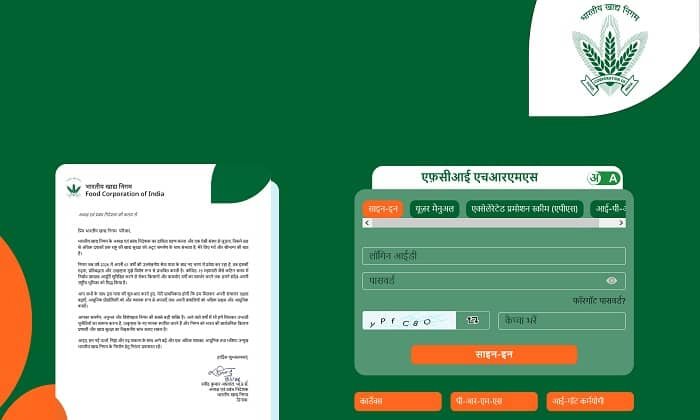
How to Log In to FCI HRMS
Follow these steps to access the employee account:
- Open https://www.hrmsfci.in/.
- Enter your Login ID in the first field.
- Type the correct password.
- Read the captcha shown on the page.
- Enter the captcha in the required field.
- Click the Sign In button.
- The HRMS dashboard will open after successful verification.
Employees should use only the official FCI HRMS website. Login information, passwords and OTPs should not be shared with other people.
How to Reset a Forgotten Password
The FCI HRMS login page provides a Forgot Password? option.
Employees who cannot remember their password should click this option and complete the verification requested on the screen. The process may require details connected with the employee’s registered HRMS account.
When password recovery cannot be completed online, the employee should contact the HRMS nodal officer or FCI IT section. The official ESS manual advises employees facing unresolved login problems to provide their employee number, name and office details to hrmssupport.fci@gov.in.
Key Features of FCI HRMS
1. Employee Self Service Dashboard
The Employee Self Service dashboard provides a common workspace for FCI employees. It allows them to access important records and initiate different HR requests from one account.
The dashboard can display planned leave, holidays, attendance, training and other information based on the employee’s access rights. Employees can also track the status and action history of supported requests.
2. Employee Profile
Employees can view personal and employment-related information through the profile section. This helps them identify incorrect or outdated information in their HRMS records.
Any official correction should be submitted through the applicable process and supported by proper documents. Employees should not assume that changing information on their own automatically updates their official service record.
3. Attendance Management
FCI HRMS maintains attendance information showing whether an employee was present, absent or on leave.
Employees can review their attendance statement through the dashboard. The system also provides an attendance-regularisation facility for eligible cases where an attendance entry requires correction or approval.
4. Leave Management
The leave section allows employees to:
- View available leave balance
- Submit a leave request
- View previously submitted applications
- Check approval status
- Review the action history
Employees may also use the system for services such as leave-balance correction, leave encashment and leave-station intimation where these options are enabled.
5. Salary Slip and Payroll Reports
FCI HRMS includes a payroll module through which salary-related records and reports are managed. Salary slips can be generated after payroll processing and authorisation.
The official payroll manual gives the navigation as Payroll → Reports → Employee Salary Slip. The salary slip can be opened as a PDF, saved on the device or printed. The system also includes earnings reports and monthly deduction reports.
How to Download an FCI Salary Slip
- Visit https://www.hrmsfci.in/.
- Sign in using the employee Login ID and password.
- Open the payroll or payroll-reports section.
- Select Employee Salary Slip.
- Apply the required month, year or employee filters.
- Open the available salary-slip record.
- Download the PDF or print it.
Employees should check earnings, allowances, deductions and net salary carefully. Any discrepancy should be reported to the payroll or accounts section.
6. Reimbursement Services
FCI employees can use the HRMS mobile or web services for several reimbursement-related requests. Available options may include:
- Overtime allowance reimbursement
- Travel reimbursement
- Other reimbursements
- Briefcase reimbursement
- Local travel allowance
- Medical allowance
- Tour advance
Employees can submit a request and review its approval or action history through the system.
7. LTC Services
The portal supports Leave Travel Concession services, including LTC for Bharat Darshan or hometown and eligible destination-change requests.
Employees should submit the required information and documents carefully. Approval, reimbursement and eligibility remain subject to FCI rules and the employee’s entitlement.
8. Movable and Immovable Property Returns
FCI HRMS provides facilities related to movable and immovable property reporting. Employees may submit property information, check action history and complete confirmation where applicable.
The public homepage also provides a separate option to view Immovable Property Return status.
9. Performance Management System
The Performance Management System module supports employee-performance-related activities, including appraisal workflows based on assigned roles.
Employees and managers can use the system according to the permissions provided to them. A separate PMS user manual is available on the official portal.
10. Employee Directory and Retirement Calculator
The employee directory allows authorised users to view organisational and employee hierarchy information. Search results may show details such as employee name, designation, office, division, location and employee number.
The ESS system also includes a retirement-benefit calculator for employees with active employment status. It can show changing gratuity and leave-encashment estimates based on the current date.
FCI HRMS Mobile Application
FCI HRMS is also available through a mobile application for Android and iOS users.
Employees can log in using their Employee ID and password or create an MPIN for easier access. To create a new MPIN, the employee must complete OTP verification through the registered mobile number.
The mobile dashboard supports many services, including attendance, leave, holidays, notifications, reimbursements, LTC, property declarations, medical identity cards, NOC requests, leave encashment and payroll reports. The official homepage provides the mobile-app manual and an iOS application link.
Other Links Available on the FCI HRMS Portal
The homepage also provides access to:
- User Manuals: Instructions for different HRMS modules
- Accelerated Promotion Scheme: Limited Departmental Promotion Examination information
- IPR Status: Immovable Property Return status
- Cardex: Linked employee-related service
- PRMS: Post-retirement medical-related portal
- iGOT Karmayogi: Government learning and training platform
Employees should open these services through the official FCI HRMS homepage rather than using unknown third-party links.
Benefits of FCI HRMS
FCI HRMS reduces dependence on manual registers and physical applications. Employees can access records, submit requests and follow approvals through one connected platform.
The system also improves transparency because employees can view attendance, leave, salary reports and request histories. Managers can review pending applications and perform approval actions according to their assigned authority.
Troubleshooting Common Problems
1. Incorrect Login ID or Password
Check the spelling carefully and make sure no extra spaces have been entered. Use the password-recovery option when necessary.
2. Captcha Not Accepted
Enter the captcha exactly as displayed. Refresh it when the characters are unclear.
3. Salary Slip Not Showing
The salary slip may be unavailable until payroll has been processed and authorised. Contact the payroll or accounts section if the problem continues.
4. Mobile OTP Not Received
Confirm that the correct mobile number is registered in HRMS. Network delays may also affect OTP delivery.
5. HRMS Menu Not Visible
Access to different menus depends on the employee’s role and permissions. Employees who cannot access an expected menu should contact their HRMS nodal officer.
Conclusion
FCI HRMS is a comprehensive employee-management platform for Food Corporation of India staff. It provides access to attendance, leave, salary slips, reimbursements, LTC, property returns, performance management and many other employee services.
Employees should use only https://www.hrmsfci.in/ and keep their registered mobile number and profile details updated. Any login, salary or service-record issue should be reported to the concerned HRMS nodal officer or FCI IT section.
Frequently Asked Questions
Q1. What is the official FCI HRMS portal?
A: The official portal is https://www.hrmsfci.in/.
Q2. Who can use FCI HRMS?
A: FCI employees and authorised officials with valid HRMS credentials can use the services available for their roles.
Q3. Can employees download salary slips from FCI HRMS?
A: Yes. Salary slips can be opened and downloaded as PDF files through the payroll-reports section.
Q4. Can an employee apply for leave through FCI HRMS?
A: Yes. Employees can view leave balances, submit leave applications and check their status through HRMS.
Q5. What should an employee do if FCI HRMS login is not working?
A: The employee should check the credentials, use the password-recovery option or contact the HRMS nodal officer. Unresolved issues may be reported to hrmssupport.fci@gov.in with the employee’s details.